Cyberpunk Industrial - Breakdown
Here's the breakdown for my Cyberpunk Industrial scene: https://www.artstation.com/artwork/QKy3aL that I made while attending Sierra Division Academy with Alex Beddows as my mentor.
-------------
To begin, I found a concept art piece that matched the goals I was trying to achieve and gathered references for what the shapes might represent in more detail. I also broke down which areas repeated so that I could reduce the amount of work needed once I started modeling. Next, I blocked out the concept with it overlaid onto my camera for accuracy. After the block out was done, I imported it into Unreal and realized I needed to array the assets in engine if I wanted to further reduce my workload. To do this, I had to learn how to use Blueprints and created one that would array assets along a curve. I also added the ability to randomize a set of assets along the curve to create variation. [1a] [1b]
-------------
Once that was setup the next step was to apply materials onto my assets without obvious tiling. I decided that using Unreal's layered material would be the best. I ended up using Ilya Pavlov’s (CGCrucible) technique to setup my layered materials with my own changes to fit the needs of the project. It involves packing portions of your maps into two utility textures. The diffuse map is created from single channel texture and its colored using a similar process to the gradient node inside of Substance designer but instead we're doing that in unreal using Curve Atlas and Color Curves. [2a] One of the early issues I ran into was that the materials were tiling too noticeably since the models were being arrayed so cleanly down the curve. To solve this, I added a texture offset driven by the object’s absolute position. It turned out to be a great help and perfect for what I was looking for.
-------------
After getting my initial material layering done, I noticed that my vertex painting looked too solid. I wanted edge wear but still wanted full control without constantly jumping in and out of a painting tool. To solve this I decided to use RGB masks to help facilitate where I wanted certain materials to appear. I quickly realized that generating a mask per object was going to be tedious since I had around 50 individual mesh components that needed masks. So I used ChatGPT to help generate a script that batch applied smart materials to specific texture sets inside Substance Painter. I still had to manually plug the masks into my layered material, but the script saved me hours of repetitive work. Next I Implemented the masks into my materials in Unreal and realized I wanted more control over the mask influence. This became an issue because I couldn’t achieve what I needed without an alpha channel per channel. The way I solved this was by removing anything below a value of 0.49 and adding anything above 0.51. With that setup, I could add or remove details on a per channel basis without needing an alpha channel. [3b] With this method I was able to get a ton of variation with a limited pallet of base materials. [3c] [3d] [3e]
-------------
The masking helped the scene feel much more detailed, but then I realized my layered materials weren’t separating enough in depth. I didn’t want to rely on displacement for material blending, so I looked for other options. Using the Perturb Normal material function ended up giving me what I needed. It’s performance heavy and resolution dependent, so it’s not ideal for an actual game, but for a scene like this it worked perfectly. I also blend a noise map to adjust the edge mask quality to help my vertex painting from looking too soft.[4a] [4b]
-------------
For the hologram effect, I followed Michael Tiedtke’s scifi hologram tutorial on YouTube. I made some modifications to get the effect I wanted to achieve. [5a]
-------------
For the decals I followed Thomas Woodward’s POM decal tutorial, which helped add depth to various decals scattered throughout the scene. [6a] [6b] [6c]
-------------
For final touch ups, I created some of my own decals and used others from the Megascans library. The characters are from BigMediumSmall’s Apocalypse collection. All post processing was handled in Unreal, except for a sharpen pass, which I did in Photoshop. Thank you for taking the time to read this and let me know if there is anything else you would like to know on how I achieved the look of my scene!

Hero shot
[1a] Video showcasing the array along curve Blueprint. You can array randomly or on a set pattern, the pattern is determined by order of the Array elements. You can also leave empty spaces for breaks in spacing.
![[1b] image of the Curve Array Blueprint.](https://cdna.artstation.com/p/assets/images/images/094/260/836/large/german-rodriguez-array-blueprint.webp?1764897290)
[1b] image of the Curve Array Blueprint.
[2a] here is an example of how I can change the diffuse using Curve Atlases and Color Curves.
[3a] here is the script in action. Its still an early version but it worked for what I needed. If interested I can send you the script!
![[3b] here is my rough solution for changing the values of a mask without an alpha channel.](https://cdna.artstation.com/p/assets/images/images/094/261/074/large/german-rodriguez-painting-on-premade-masks.webp?1764898285)
[3b] here is my rough solution for changing the values of a mask without an alpha channel.
![[3c] Here is an example of metal materials using the same vertex painting and masks.](https://cdnb.artstation.com/p/assets/images/images/094/261/327/large/german-rodriguez-metal-material.webp?1764899335)
[3c] Here is an example of metal materials using the same vertex painting and masks.
![[3d] Here is an example of concrete materials using the same vertex painting and masks.](https://cdnb.artstation.com/p/assets/images/images/094/261/329/large/german-rodriguez-concrete-material.webp?1764899338)
[3d] Here is an example of concrete materials using the same vertex painting and masks.
![[3e] Here is an example of concrete materials but changing the Color Curves using the same vertex painting and masks.](https://cdnb.artstation.com/p/assets/images/images/094/261/325/large/german-rodriguez-curves-material.webp?1764899333)
[3e] Here is an example of concrete materials but changing the Color Curves using the same vertex painting and masks.
[4a] Here are the Perturb Normals in action. These normals were being generated from a mask that looked at the heights between both layers.
![[4b] here is my node setup for Perturb Normals. I used cosine to find the area between the highs and lows of the mask.](https://cdnb.artstation.com/p/assets/images/images/094/261/147/large/german-rodriguez-perturbnormal.webp?1764898724)
[4b] here is my node setup for Perturb Normals. I used cosine to find the area between the highs and lows of the mask.
[5a] video showcasing the Hologram effect.
![[6a] here are some of the POM decals I used in the scene.](https://cdnb.artstation.com/p/assets/images/images/094/261/251/large/german-rodriguez-pom-decals.webp?1764899067)
[6a] here are some of the POM decals I used in the scene.
![[6b] an example of where the POM decals were used.](https://cdnb.artstation.com/p/assets/images/images/094/261/253/large/german-rodriguez-pom-example-01.webp?1764899070)
[6b] an example of where the POM decals were used.
![[6c] an example of where the POM decals were used.](https://cdna.artstation.com/p/assets/images/images/094/261/254/large/german-rodriguez-pom-example-02.webp?1764899073)
[6c] an example of where the POM decals were used.
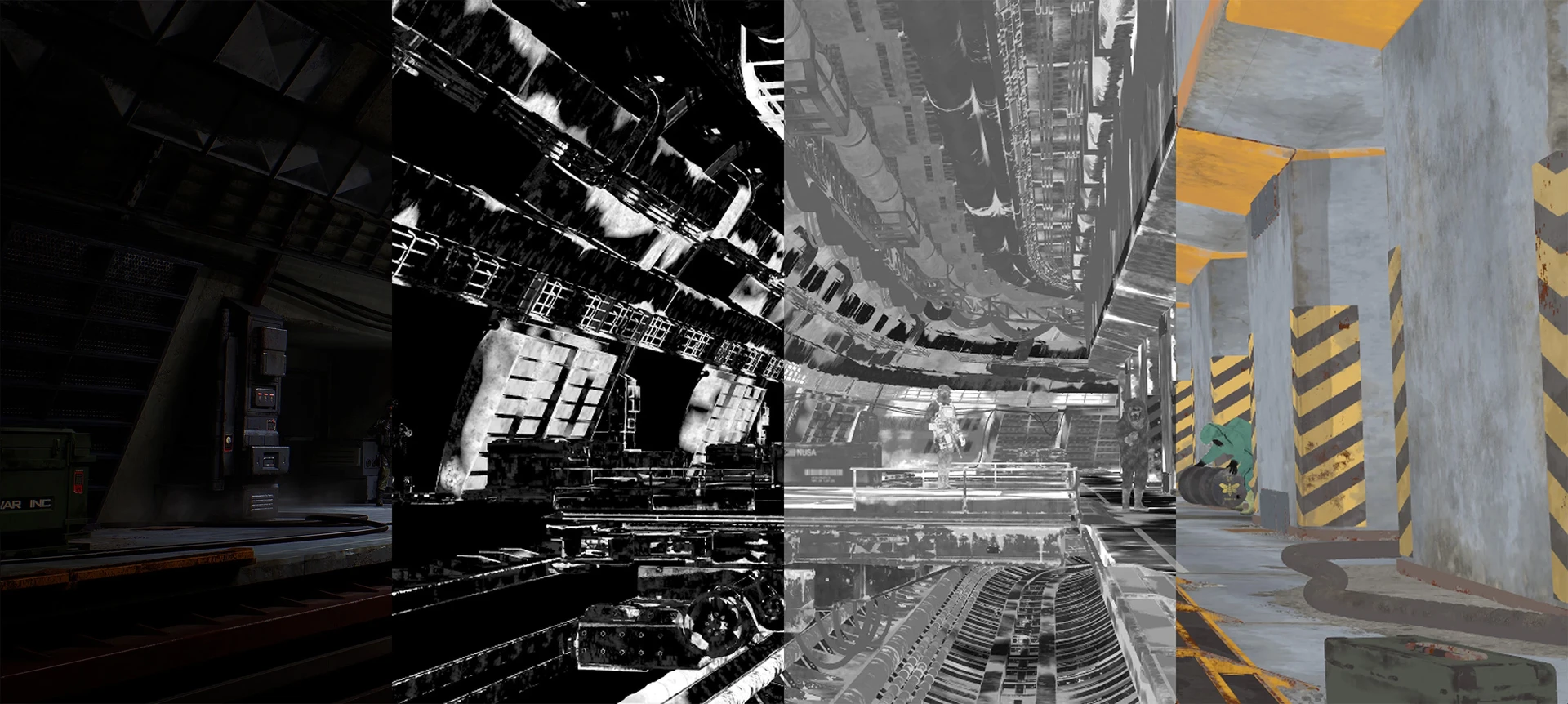
Render passes

Here are some of the assets I made to make the environment.

Here are some of the assets I made to make the environment.

Here are some of the assets I made to make the environment.

Here are some of the assets I made to make the environment.

This screenshot shows the full vertex painting pass. Painting each arrayed instance as a unique asset allowed me to add variation and avoid visible repetition.